
Integration with ChatGPT and MCP
Traditionally, you had to use the OpenAI API key directly to let GPT call external tools. With Model Context Protocol (MCP), you can expose your own servers and tools to ChatGPT without hardcoding everything into your app.
For example, here’s how you can connect an MCP server and run process-monitoring tools programmatically:
from dotenv import load_dotenvfrom agents.mcp import MCPServerStdiofrom agents import Agent, Runner, trace
load_dotenv(override=True)
fetch_params = {"command": "uv", "args": ["run", "mcp.py"], "env": {}}
async with MCPServerStdio(    params=fetch_params, client_session_timeout_seconds=60, name="ha") as server:    fetch_tools = await server.list_tools()
print(fetch_tools)
instructions = """You are SysMon, an operations-savvy assistant that inspects local processes via an MCP tool.
Guidelines:1. When the user asks “top N by memory/cpu”, call list_processes with per_page=N, page=1 and the correct sort_by.2. Prefer server-side sorting (sort_by + order) over client-side sorting.3. Always include PID in summaries. Report memory in MB and CPU% when available.4. If more rows are needed, request subsequent pages.5. If the user names an app (e.g., “chrome”), pass q="chrome".
Respond concisely with a short table and 1–2 bullet insights. Always state which sort key and page size were used."""
async with MCPServerStdio( params=fetch_params, client_session_timeout_seconds=60, name="ha") as server: agent = Agent( name="investigator", instructions=instructions, model="gpt-4.1-mini", mcp_servers=[server], ) with trace("SYS MONitor"): # This triggers an API call and consumes credits (beyond your ChatGPT subscription). result = await Runner.run( agent, "Show me the current processes", ) print(result.final_output)Follow these steps to integrate your MCP server with ChatGPT Developer Mode.
-
Create an MCP server
Refer to this example for setup instructions. -
Run the MCP server
Example command:Terminal window uv run fastmcp run mcp2.py:mcp --transport http --port 8001 -
Enable Developer Mode in ChatGPT
See the official guide. -
Expose your local MCP server
- If using VSCode, go to the PORTS tab and expose the server port.
- Tools like Ngrok provide a more stable tunnel for external access.
-
Add a new connector in ChatGPT
- Append
/mcpto the end of your public URL. - Example:
https://<your-ngrok-domain>/mcp 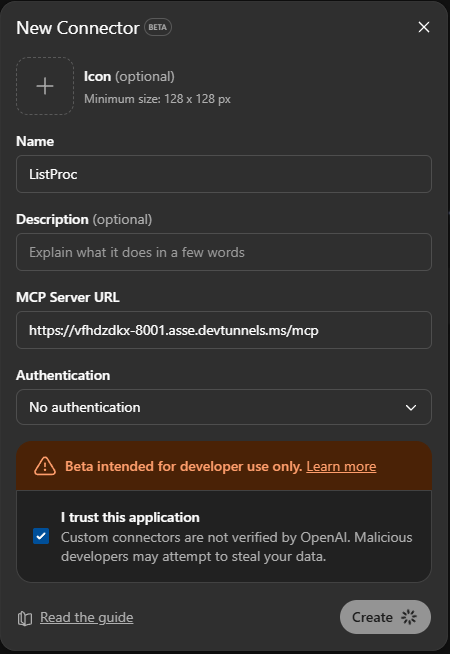
- Append
-
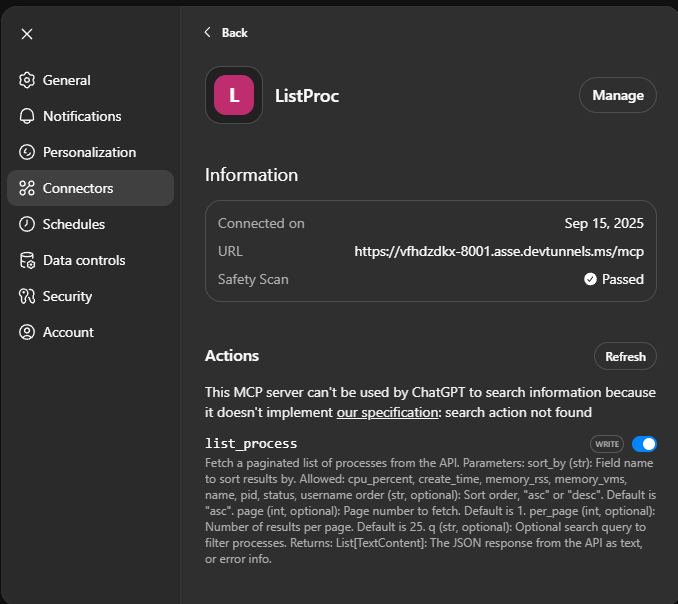
Verify tools are visible
- You should see the registered tools listed inside ChatGPT.
-
Create a new chat session
-
Enable Developer Mode + Connector
- In the left sidebar, click the Plus (+) sign.
- Toggle on Developer Mode and enable your connector.
-
Start prompting
Example prompt:Use the list_process tool and generate a table (include the cmdline).Then give 3 bullet-point insights on memory usage. -
Validate responses
ChatGPT should call the MCP tool, then analyze and summarize the process data.
Example shared output: see here
- MCP allows you to securely integrate your own local or remote tools into ChatGPT.
- Every MCP tool call triggers an API request and consumes credits.
- Use server-side filtering and pagination for efficiency.
- Exposing a local server requires tunneling if ChatGPT cannot access it directly.