
LinkedIn Scraping
Automating LinkedIn Job Hunting: A Technical Adventure with Selenium and Chrome
Section titled “Automating LinkedIn Job Hunting: A Technical Adventure with Selenium and Chrome”Searching for contract work on LinkedIn can feel like an endless cycle: scroll, click, apply, repeat. Beyond the repetition, there’s also the challenge of keeping track of which roles you’ve applied for, which ones look promising, and which ones are already stale. As a developer, I saw an opportunity: Why not automate this? A scraper, purpose-built to collect job postings directly from LinkedIn, could save untold hours of effort and inject efficiency into the otherwise monotonous task of job-hunting.
The idea was simple—build a scraper that could:
- Collect LinkedIn job posts (particularly those advertising contracts).
- Allow me to quickly apply (or at least prepare for applying).
- Store the results in a structured format (eventually pushing them into a spreadsheet for tracking).
In theory, this would give me a personalized job-hunting dashboard. In practice, it became a crash course in browser automation, authentication quirks, and the invisible walls erected by modern web platforms.
Step 1: First Attempt with Microsoft Edge
Section titled “Step 1: First Attempt with Microsoft Edge”My first attempt was with Microsoft Edge, largely because it ships with Windows and has solid Selenium integration. The setup seemed straightforward: install msedgedriver, point Selenium to it, and open LinkedIn.
Instead of a smooth entry, though, I was greeted by an immediate crash. The browser session terminated before it could load a page, throwing errors about the DevTools port.
Lesson learned: not every browser is equally well-supported, and debugging setup issues can eat more time than it’s worth. At this point, Edge was out.
Step 2: Reusing My Chrome Profile
Section titled “Step 2: Reusing My Chrome Profile”Next, I turned to Chrome. The logic was appealing: my Chrome profile already had me logged into LinkedIn, so if I launched Selenium with that profile, I could bypass the login flow entirely. No fiddling with CAPTCHAs, no “Sign in with Google” dialogs—just straight to the content.
Here’s where theory met reality. Chrome refused to cooperate when asked to open my main profile under automation. The errors were cryptic, and the result was always the same: the browser launched but never successfully navigated to LinkedIn.
Lesson learned: Chrome is not designed to let you attach Selenium directly to your main user profile—it’s a security risk, and Google has deliberately made it difficult.
Step 3: The Profile Duplication Trick
Section titled “Step 3: The Profile Duplication Trick”After a round of trial and error, I hit on an idea: copy my profile folder to a new temporary location and point Selenium’s —user-data-dir there.
Surprisingly, this worked. The browser launched, LinkedIn opened, and it recognized my Google profile. My profile picture even appeared in the top corner of the page. For the first time, I felt I was on the cusp of success.
At this point, I could scrape the page source and start parsing content with BeautifulSoup This was the first real win in the project.
Step 4: The Authentication Roadblock
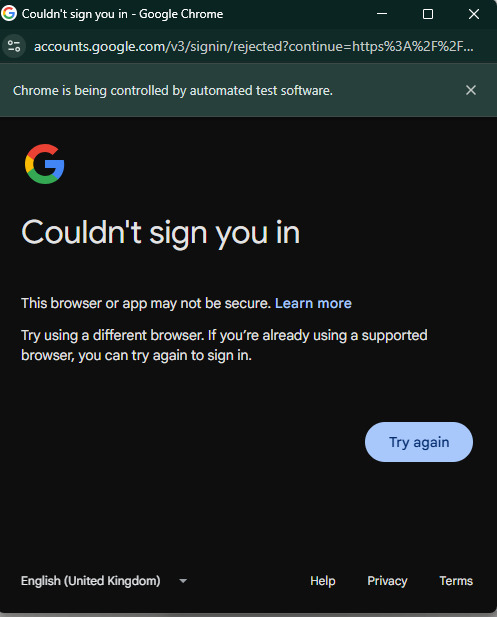
Section titled “Step 4: The Authentication Roadblock”And then came the final hurdle: authentication. Clicking Sign in with Google looked like it would complete the circle. Instead, LinkedIn promptly blocked the attempt. Google’s security checks identified the automated environment and refused to authenticate.
That was the end of the line for this iteration. The scraper could load LinkedIn while logged in, but any interaction requiring active authentication was stopped cold.
Lesson learned: platforms like LinkedIn invest heavily in anti-bot defenses. They don’t just check cookies—they monitor interaction patterns, headers, and even automation fingerprints.
Where to Go From Here
Section titled “Where to Go From Here”At this stage, I had a partially functioning system: I could open LinkedIn in an automated browser session and see content. The missing piece was sustainability—being able to consistently log in, scrape posts, and track them without hitting roadblocks.
My next steps include:
Exploring undetectable ChromeDriver options, which aim to reduce the automation fingerprints that trigger platform defenses.
Building a pipeline to store scraped posts in a structured format (JSON, CSV, or directly into Google Sheets).
Adding logic to track whether I’ve already applied to a given post, so the system becomes a true job-application tracker, not just a data collector.
A Note on Ethics and Practicality
Section titled “A Note on Ethics and Practicality”Before closing, it’s important to acknowledge the elephant in the room: scraping LinkedIn is against their terms of service. The measures that blocked my automation aren’t arbitrary—they’re intentional safeguards.
For developers considering similar projects, there’s a balance to strike between technical exploration (learning Selenium, browser automation, and data pipelines) and respecting platform boundaries.
In my case, this project is primarily an exercise in technical learning. The long-term vision isn’t just scraping jobs blindly, but creating a workflow that helps me keep track of applications more effectively.
Technical Roadmap
Section titled “Technical Roadmap”Here’s a possible milestone-based roadmap for turning this experiment into a more complete tutorial:
Milestone Goal Tools / Notes
Basic Scraper Launch Chrome, load LinkedIn, and parse job listings. Selenium + BeautifulSoupData Extraction Extract relevant job details (title, poster, date). XPath / CSS selectors- Storage Save posts into CSV/JSON for persistence. pandas or built-in csv
- Application Tracking Mark which posts I’ve already applied to. Add status column in CSV/Sheets
Sheets Integration Push data into Google Sheets for real-time tracking. gspread / Google Sheets API. Manual for nowAutomation Refinement Experiment with stealthier drivers and better session management.. DONEundetectable-ChromeDriver
Final Code
Section titled “Final Code”import osimport timeimport shutilimport tempfilefrom pathlib import Pathfrom contextlib import suppress
from bs4 import BeautifulSoupfrom selenium import webdriverfrom selenium.webdriver.chrome.service import Servicefrom selenium.webdriver.chrome.options import Options
# --- CONFIG ---CHROMEDRIVER_PATH = "./chromedriver.exe"PROFILE_NAME = "Default"
# Build pathsuser_data_dir = Path(os.environ["LOCALAPPDATA"]) / "Google" / "Chrome" / "User Data"src_profile = user_data_dir / PROFILE_NAME
if not src_profile.exists(): raise FileNotFoundError(f"Profile folder not found: {src_profile}")
# Create temporary user data directory and copy profiletemp_udd = Path(tempfile.mkdtemp(prefix="chrome-clone-"))dst_profile = temp_udd / PROFILE_NAMEdst_profile.mkdir(parents=True, exist_ok=True)
# Directories to skip during copyskip_dirs = { "Cache", "Code Cache", "GPUCache", "Service Worker", "IndexedDB", "File System", "Storage", "GrShaderCache", "Media Cache", "Network", "Crashpad", "DIPS", "OptimizationGuide", "Platform Notifications", "Reporting and NEL"}
# Copy profile filesfor item in src_profile.iterdir(): if item.name in skip_dirs: continue dst = dst_profile / item.name try: if item.is_dir(): shutil.copytree(item, dst, dirs_exist_ok=True) else: shutil.copy2(item, dst) except Exception: pass
# Remove Chrome lock filesfor lock in ("SingletonLock", "SingletonCookie", "SingletonSocket"): with suppress(Exception): (dst_profile / lock).unlink()
# Setup Chrome optionsoptions = Options()options.add_argument(f"--user-data-dir={temp_udd}")options.add_argument(f"--profile-directory={PROFILE_NAME}")options.add_argument("--no-first-run")options.add_argument("--no-default-browser-check")
# Start driverservice = Service(CHROMEDRIVER_PATH)driver = webdriver.Chrome(service=service, options=options)driver.set_window_size(1280, 900)
# Navigate and print page titledriver.get("https://www.linkedin.com/")time.sleep(2)
soup = BeautifulSoup(driver.page_source, "html.parser")print("Title:", soup.title.get_text(strip=True) if soup.title else "(no title)")Update
Section titled “Update”Using undetectable-chromedriver
Section titled “Using undetectable-chromedriver”Extracting Structured Data with GPT-5
Once I had a stable browser session and could reliably fetch the HTML source, the next challenge was making sense of the data. LinkedIn posts are wrapped in deeply nested markup, and manually untangling it was tedious.
Here’s where GPT-5 came in handy: I used it to help me map the raw HTML elements into a structured format. With its assistance, I extracted key fields like post ID, author details, job role, and engagement metrics into a tabular format that looks like this:
| post_id | author_name | author_headline | date_label | date_iso_guess | job_position_guess | content | likes | comments | reposts | timestamp |
|---|---|---|---|---|---|---|---|---|---|---|
| 7363923075957956608 | James Dryden | Principal Consultant at Hydrogen Group | 5d | 2025-08-21T18:59:04 | Data Engineer (GCP/Python) — UK ONLY | 🚀 Contract Opportunity – Data Engineer (GCP/Python)… | 10 | 1.0 | 2.0 | 2025-08-26 11:59:04.894450+00:00 |
| 7365991455921762305 | Unnati Kumar | Senior Talent Acquisition Specialist | 5h | 2025-08-26T13:59:04 | Contract Role (Remote) | 🚀 We’re Hiring! Remote – Contract Role 🚀 Looking… | 10 | 2.0 | NaN | 2025-08-26 11:59:04.897465+00:00 |
With this structure in place, it becomes straightforward to:
-
Save results into CSV/JSON.
-
Push them into Google Sheets for real-time tracking.
-
Add logic to check whether I’ve already applied to a given post.
Final Thoughts
Section titled “Final Thoughts”What began as a “simple” project to streamline job hunting became an unexpected deep dive into the realities of modern web automation. While I haven’t yet achieved a fully functioning system, the lessons along the way—about browsers, sessions, authentication, and platform defenses—have been invaluable.
The story isn’t over. The next chapter will focus on refining the approach, experimenting with stealthier automation tools, and ultimately integrating the results into a structured application-tracking pipeline.
Until then, the adventure continues.
But I think I can just go to linked in everyday,
- scroll down a few pages down
- Save as HTML
- Run BS4 parser
- Form the table above